Image to Excel
Turn a table screenshot or photo into an editable Excel spreadsheet.

Or drop your images here
Or press Ctrl + V to paste a screenshot
Original image
Editable table Click a cell to edit
Column types & removal
Choose Keep as text for IDs, phone numbers and other codes.
Show recognition details
Compare flagged cells with the original image.
How it works
Which images work best?
Clear table screenshots with complete rows and columns.
English text and numbers. Handwriting and other languages are not supported yet.
What can I do with the result?
Check it against the image, edit cells, then copy or download Excel.
Turn a screenshot into an editable spreadsheet
Choose a clear screenshot or JPG/PNG image of a table. Check the cells against the original, then download Excel. No app installation or account is needed.
Example: two sales screenshots, one sheet
Two monthly lists can become one Excel sheet. The example contains fictional order data; repeated products stay as separate records.
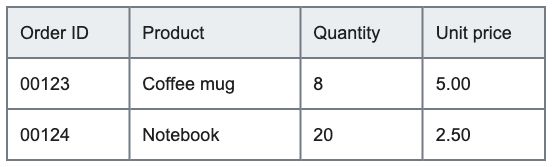
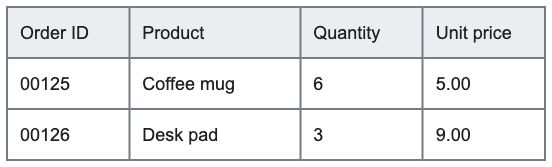
Download the Excel generated from these images · See the combined result and step-by-step instructions
Cannot find the command in Excel? Check where Data From Picture is available and what to try next.
Choose images, check cells, download Excel
Select your images, or paste a table screenshot with Ctrl + V (⌘ + V on Mac). The image and editable result appear side by side. Check numbers, edit cells and use Download Excel to generate your workbook.
Can I convert JPG and PNG to Excel?
Yes, for clear images of simple tables containing printed English and numbers. Choose JPG or PNG files. This version does not support handwriting, receipts, other languages or complex nested headers.
How do I paste a screenshot?
Copy the screenshot to your clipboard and press Ctrl + V, or ⌘ + V on Mac, while using this page. Paste into the upload area, not an editable table cell. You can also choose a saved image file.
Can I use a photo of a printed table?
Use a clear JPG or PNG photo of a simple English table. Keep the whole table in view and take the photo as square-on as possible. Choose the image and check the first result. If the table is tilted, use Crop / straighten, place the four corners around the table and select Apply and re-read before editing cells; re-reading replaces manual edits for that image. Retake photos with blur, glare or curved paper. Always compare the final cells with the photo.
Are my images uploaded?
No. Images and table contents are processed in this browser. Recognition models download from this website. Optional usage statistics only count operation states with your permission; they never include images or recognized text. See Privacy.
Values in the wrong columns? Check the table structure before exporting.
What do yellow cells mean?
These cells need review because readings disagree or checks are incomplete. Select one to compare its original image crop and candidate values. Unmarked cells can also contain errors. Check important numbers, order IDs and column alignment before exporting.
Can I convert several images into one Excel file?
Yes. Add up to 10 images, review each table and select Combine into one sheet or One sheet per image. A combined sheet requires matching headings and column order. Records are kept, not added together or deduplicated. Read the multiple-image guide.